

In today’s digital world, attention is the new currency. A slow Shopify website does not just frustrate visitors; it quietly costs you sales, trust, and visibility. Imagine walking into a store where the door takes ten seconds to open. By the time it finally does, half of the customers have already walked away. That is exactly what happens when your Shopify store takes too long to load.
Fortunately, improving your website’s speed is not complicated. With a few practical and consistent actions, you can make your Shopify store run faster, feel smoother, and deliver a better shopping experience for every visitor.
Let us explore a detailed, step-by-step process that helps you optimize speed and performance in a way that benefits both users and search engines. But before that, let’s dive into why the website speed matters.
Why Website Speed Matters More Than You Think
Before you begin fixing anything, it is important to understand why website speed is not just a technical metric but a key factor for growth and customer satisfaction. Speed influences how your brand is perceived, how easily customers shop, and how often they return.
Research shows that 53 percent of mobile users abandon a site if it takes longer than three seconds to load. Another study by Akamai found that even a one-second delay in page load time can reduce conversions by up to seven percent. Those few seconds directly affect your bottom line.
Here’s why you must prioritize website speed:
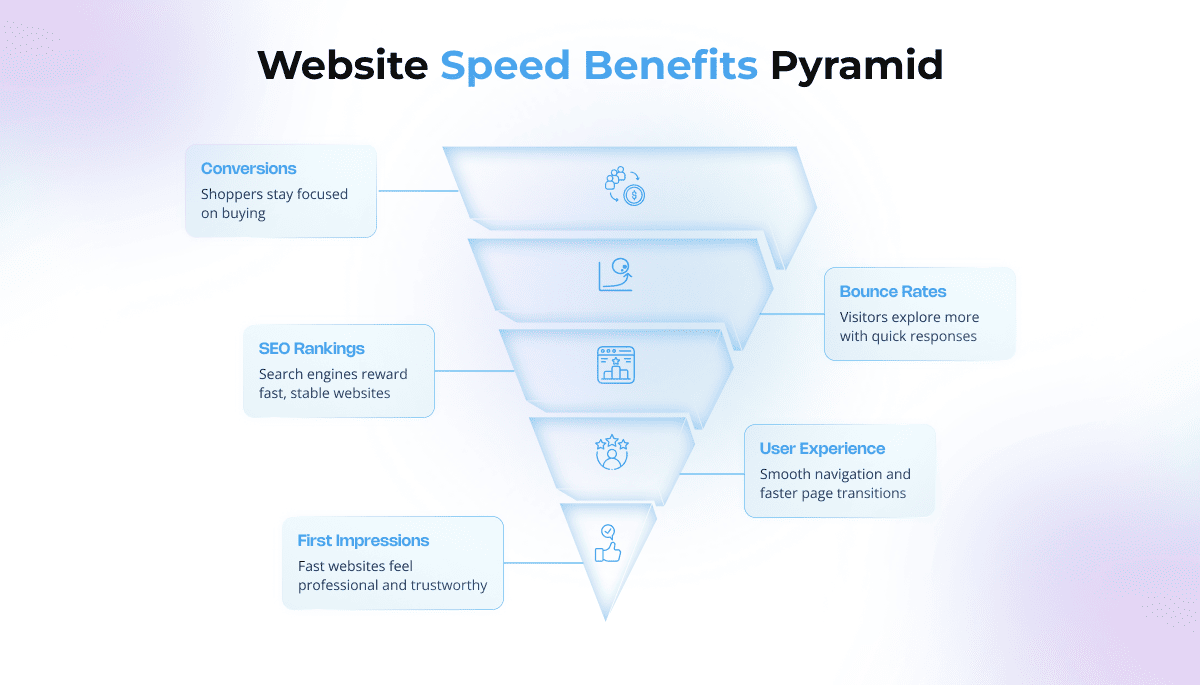
- Stronger first impressions: A fast website feels professional and trustworthy.
- Better user experience: Customers enjoy smoother navigation and faster page transitions.
- Improved SEO rankings: Search engines reward fast, stable websites.
- Lower bounce rates: Visitors are more likely to explore when pages respond quickly.
- Higher conversions: Every second saved helps keep shoppers focused on buying.
Speed builds credibility. A fast, reliable Shopify store leaves a lasting impression that keeps customers coming back.
Not sure where your Shopify store stands right now? Book a quick consultation with our optimization experts at tecHindustan. We will review your store, analyze performance data, and give you personalized suggestions to improve speed and conversions.
A Step-by-Step Framework for Shopify Speed Optimization and Performance Tuning
Step 1: Test Your Store’s Speed Before You Start
Start by assessing your current performance. A thorough speed test acts like a health check that helps you identify what is slowing you down. Testing gives you a baseline so you can measure the effect of every improvement you make later.
Here are the recommended testing tools:
- Google PageSpeed Insights: Provides insights for both mobile and desktop.
- GTmetrix: Offers detailed loading timelines and optimization suggestions.
- Pingdom: Allows speed testing from multiple global locations.
- Shopify Analyzer by SpeedBoostr: Specifically designed for Shopify stores.
Metrics that matter most:
- Page Load Time: Keep it under three seconds.
- Largest Contentful Paint (LCP): Indicates when the main content becomes visible.
- Total Blocking Time (TBT): Measures how long your website remains unresponsive.
- Cumulative Layout Shift (CLS): Tracks how much your layout moves while loading.
Pro Tip: Test both desktop and mobile versions. Most Shopify traffic comes from mobile users, and optimizing for mobile directly affects revenue.
A speed audit helps you understand where to focus your efforts and ensures that every improvement you make later can be measured against clear data.
Step 2: Optimize Images Without Losing Their Charm
Images are crucial for storytelling and sales, but they are also one of the biggest reasons websites slow down. A beautifully designed store should not suffer from oversized image files.
Smart image optimization techniques:
- Resize images before uploading. Always match the dimensions required by your theme.
- Choose the right format:
- JPEG for regular product photos.
- PNG for transparent backgrounds.
- WebP for a perfect balance between size and quality.
- Compress images with tools like TinyPNG, Squoosh, or Crush.pics.
- Use lazy loading so images load only when visible to the user.
When optimized properly, your visuals remain stunning while your website loads faster. This small improvement significantly enhances both user experience and search rankings.
Step 3: Control Your Apps Before They Control Your Speed
Every app installed on your Shopify store adds extra code and scripts. While apps add valuable features, too many of them can overload your site and slow it down.
How to keep apps in check
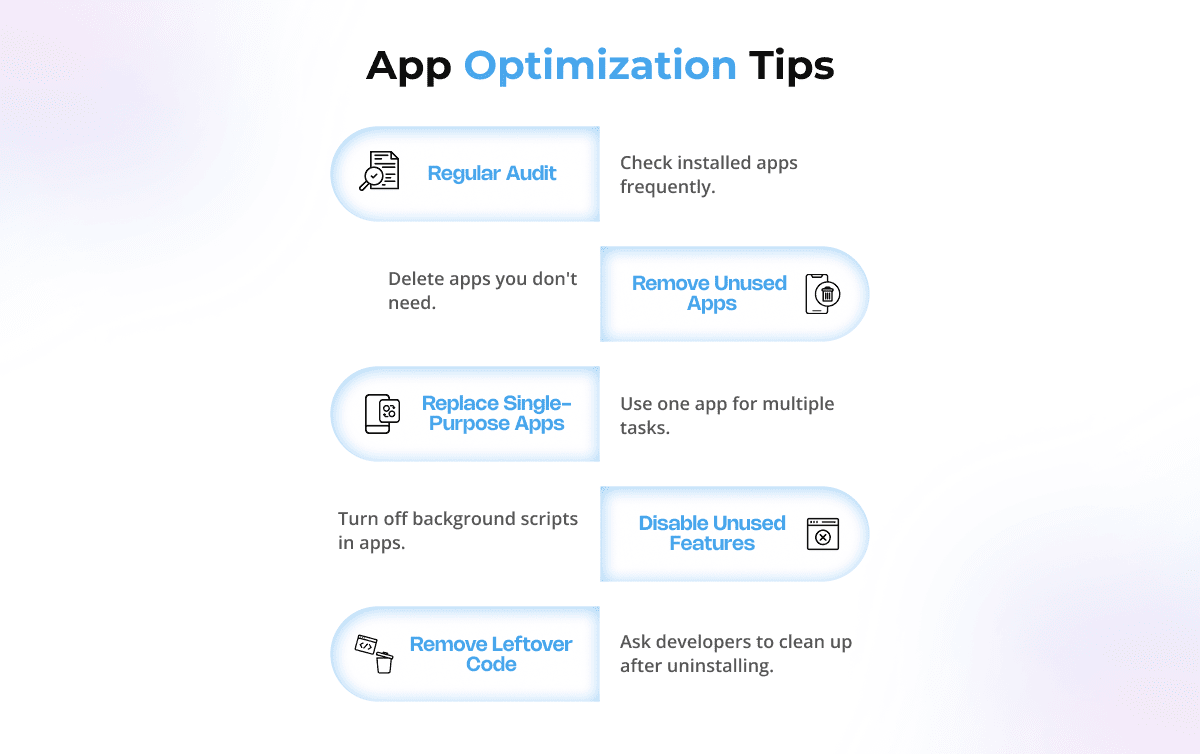
- Conduct a regular audit of all installed apps.
- Remove apps that you no longer use or that overlap in functionality.
- Replace several single-purpose apps with one versatile app.
- Disable unused app features that still run background scripts.
- Ask your developer to remove leftover code after uninstalling any app.
For example, one app that handles reviews, pop-ups, and social sharing is better than three separate ones. Fewer apps mean fewer scripts and faster load times.
Step 4: Choose a Theme That Moves Fast
Your theme influences design, functionality, and overall loading performance. An attractive theme is important, but efficiency matters just as much.
What to look for in a high-performance theme
- Prefer Shopify Online Store 2.0 themes because they are built with performance optimization in mind.
- Avoid heavy animations and video backgrounds that increase loading time.
- Test the theme with PageSpeed Insights before publishing.
- Keep it updated to benefit from developer improvements.
A well-optimized theme sets the foundation for a smooth customer experience.
Step 5: Minimize Redirects and Broken Links
Too many redirects can cause delays before a page loads. Broken links frustrate users and hurt SEO. A clean structure helps both users and search engines navigate your site efficiently.
Best practices
- Keep redirects to a minimum.
- Use Shopify’s URL redirect tool to fix outdated or broken links.
- Run periodic site audits with tools like Ahrefs or Screaming Frog.
- Use canonical tags to help search engines identify the main version of your pages.
Reducing redirects makes every click count and helps users reach their destination faster.
Step 6: Use Caching and a CDN to Stay Close to Visitors
Caching and Content Delivery Networks are vital for fast load times. They store website files closer to your visitors, reducing the distance data must travel.
How to use them effectively
- Shopify automatically handles caching for standard assets.
- Check your theme.liquid file for proper cache control headers if you use custom code.
- Shopify’s built-in Fastly CDN ensures global delivery.
- Integrate Cloudflare for extra optimization and security.
By leveraging caching and CDNs, your store will load quickly for users regardless of their location.
Step 7: Make Fonts and Icons Lightweight
Custom fonts and icon libraries can quietly drag down page speed. Use only what you need and keep it simple.
Font and icon optimization steps
- Use system fonts like Arial, Helvetica, or Roboto that load instantly.
- Limit yourself to two or three font families.
- Host fonts locally rather than on external servers.
- Add the font-display: swap property so text appears immediately.
- Replace large icon packs with scalable SVG icons.
The result is a cleaner design that loads quickly without compromising readability or visual appeal.
Step 8: Clean Up and Minify Your Code

Your website’s codebase determines how efficiently it performs. Over time, unused or repetitive code fragments accumulate and slow down your store. Cleaning and minifying code is an easy win for speed improvement.
Steps to maintain clean code
- Minify HTML, CSS, and JavaScript using tools like CleanCSS, Minifier.org, or Shopify’s built-in options.
- Remove old or unused Liquid snippets.
- Avoid inline JavaScript or CSS unless necessary.
- Regularly review theme files to eliminate redundant lines.
Clean code makes it easier for browsers to read your pages and deliver them faster to your visitors.
Step 9: Reduce HTTP Requests
Every file on your page triggers a separate HTTP request. The more requests you have, the longer it takes to load. Reducing these requests is one of the quickest ways to boost performance.
Simple ways to reduce requests
- Combine multiple CSS or JS files into one where possible.
- Remove unused scripts or third-party tools.
- Use image sprites for small repeated icons.
- Limit the use of embedded widgets or social feeds.
Reducing requests means fewer back-and-forth communications with the server, resulting in faster loading times.
Want to make your Shopify store run faster without losing functionality? Explore tecHindustan’s Shopify Performance Optimization Services. Our team helps you streamline code, eliminate speed bottlenecks, and deliver a seamless experience to every customer.
Step 10: Focus on Mobile Performance
With most Shopify visitors shopping from mobile devices, optimizing for mobile is essential. A slow mobile experience leads to abandoned carts and poor engagement.
Mobile optimization checklist
- Avoid oversized pop-ups or full-screen banners.
- Compress mobile images separately for faster display.
- Ensure buttons and menus are easy to tap.
- Use collapsible product descriptions to keep pages tidy.
- Test with Google’s Mobile-Friendly Test regularly.
A smooth mobile experience improves both sales and satisfaction.
Step 11: Keep Your Codebase Clean
As your Shopify store grows, old snippets and tags pile up. Regular code maintenance ensures your site remains lightweight and efficient.
Maintenance plan
- Remove old Liquid templates and sections.
- Delete unused campaign tracking scripts.
- Avoid inline styles whenever possible.
- Schedule a quarterly review to catch unnecessary code.
Maintaining cleanliness in your codebase prevents performance decline as your store evolves.
Step 12: Simplify Checkout
Checkout is where visitors decide to buy or leave. Complicated or slow checkouts cause friction and reduce conversion rates.
How to simplify checkout
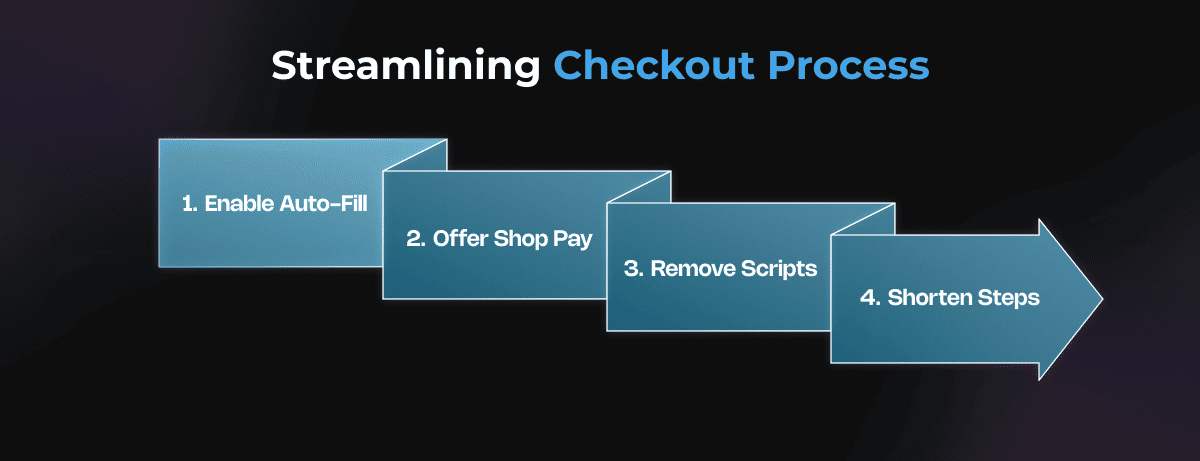
- Enable browser auto-fill to make form completion faster.
- Offer Shop Pay for quick, secure payment.
- Remove unnecessary tracking or analytics scripts during checkout.
- Keep the process short, ideally under three steps.
Fast, intuitive checkout keeps customers focused and encourages repeat purchases.
Step 13: Load Videos and Sliders Smartly
Videos can make your site more engaging but also heavier. The goal is to display them only when necessary.
Efficient video handling
- Implement lazy loading for videos and sliders.
- Use apps such as Vitals or Loox to manage this feature.
- Keep videos short and optimized for web playback.
This approach keeps your site lively without compromising loading times.
Step 14: Avoid Autoplay and Background Videos
Autoplay videos consume unnecessary bandwidth and can distract users. Instead, provide control to the viewer.
Best practices
- Use a static hero image with a play button.
- Host videos on YouTube or Vimeo instead of Shopify’s servers.
- Compress all videos before upload.
This ensures that media enhances your content rather than slowing it down.
Step 15: Track and Review Speed Regularly
Website speed optimization is an ongoing commitment. Every new update, app, or content change can influence performance.
Monitoring routine
- Retest performance after each update.
- Use Google PageSpeed Insights and Shopify’s Performance Reports to track progress.
- Document improvements to understand which changes produce the best results.
Regular tracking helps maintain a high level of performance year-round.
Step 16: Scale When the Time Is Right
Growing businesses require more powerful infrastructure. Upgrading your Shopify plan can provide better performance during high-traffic periods.
When to consider scaling
- You experience slowdowns during peak seasons.
- You have large product catalogs or heavy automation needs.
- You want more server resources to handle traffic efficiently.
Scaling ensures your store stays fast even as your business expands.
Step 17: Bring in the Experts When Needed
Sometimes you may reach a point where advanced optimization requires technical expertise. A Shopify specialist can help you go deeper into performance tuning.
How experts can assist
- Conducting detailed audits to find hidden issues.
- Cleaning up complicated theme or app code.
- Implementing advanced caching or CDN setups.
A professional review can save time and provide measurable results.
Need expert help?
Our Shopify optimization specialists at tecHindustan can audit, fine-tune, and accelerate your store for measurable speed gains. Contact us today to make your store faster, lighter, and more efficient.
Step 18: Avoid Common Mistakes
While optimizing for speed, be careful not to go too far. Some quick fixes can break functionality or harm tracking accuracy.
Mistakes to avoid
- Compressing images too much and losing visual quality.
- Removing essential scripts like Google Analytics or Facebook Pixel.
- Using multiple conflicting speed booster apps.
- Ignoring mobile testing after desktop optimization.
Implement one change at a time, test thoroughly, and record your outcomes.
Final Thoughts
Improving your Shopify website speed is not just about technical adjustments; it is about creating a faster, smoother, and more enjoyable experience for customers. When your store loads quickly, shoppers stay longer, explore more, and buy with confidence.
Start small. Compress a few images, remove an unnecessary app, and measure your progress. Over time, these small improvements compound into a significant difference in how your store performs.
Want to turn faster load times into higher conversions? Schedule a personalized Shopify speed consultation with our experts at tecHindustan. We will review your store’s performance, identify the key speed bottlenecks, and create a tailored plan to help you boost conversions through better performance and smarter design.
Speed is the backbone of online success. Make it a regular part of your business routine, and your Shopify store will reward you with higher engagement, better SEO rankings, and stronger sales performance.
