

Mobile speed is one of the most important performance issues for a Shopify store because most shoppers do not browse ecommerce websites in perfect desktop conditions. They open product pages through Instagram ads, Google Shopping, email campaigns, WhatsApp links, or organic search results, often on mobile data, with several apps already running in the background. A page that feels acceptable on a laptop can feel heavy, delayed, or frustrating on a phone.
This matters because mobile speed directly affects the way people behave before they even judge your products. Google has reported that 53% of mobile visits are likely to be abandoned when pages take longer than three seconds to load. In ecommerce, the commercial impact is even more direct. Portent’s site speed study found that ecommerce websites loading in one second had a conversion rate 2.5 times higher than sites loading in five seconds.
For Shopify merchants, mobile speed is not only a technical issue. It is connected to product discovery, ad performance, SEO, conversion rate, checkout confidence, and customer trust. Shopify’s own web performance guidance also connects performance with customer experience, discoverability, and conversion rate, and its reports measure loading speed, interactivity, and visual stability through Core Web Vitals.
What “Slow on Mobile” Actually Means?
When a Shopify store feels slow on mobile, it does not always mean the full page takes too long to load. Sometimes the top image appears late. Sometimes the page opens, but the add-to-cart button is delayed. Sometimes the user taps a size selector, and nothing happens for a second. Sometimes the product image jumps because a review widget, announcement bar, or payment badge loads after the main content.
That is why mobile speed should not be judged only by one score in PageSpeed Insights. A store can have multiple performance problems at once. The most important ones are usually connected to Google’s Core Web Vitals:
Largest Contentful Paint, or LCP, measures how quickly the main visible content loads. For a product page, this is often the main product image or hero section. Interaction to Next Paint, or INP, measures how quickly the page responds after a user taps, clicks, or types. Cumulative Layout Shift, or CLS, measures whether the layout moves unexpectedly while the page is loading. Google’s current recommended thresholds are LCP within 2.5 seconds, INP of 200 milliseconds or less, and CLS of 0.1 or less.
INP is especially important for Shopify stores because ecommerce pages are interaction-heavy. Shoppers tap image galleries, variant selectors, quantity buttons, accordion sections, review filters, sticky add-to-cart bars, cart drawers, and checkout buttons. Google confirmed that INP replaced First Input Delay as a Core Web Vital in March 2024, which means responsiveness is now judged across the user’s interactions, not just the first tap.
Why Shopify Stores Often Become Slow on Mobile?
Shopify itself is not usually the core problem. In most cases, slow mobile performance comes from the way the store has been built over time. A new app is added. A promotional pop-up is installed. A theme section is customized. More product images are uploaded. Tracking pixels are added for ads. A review widget, upsell tool, subscription app, chat widget, and currency converter all begin loading on the same page.
Each of these elements may have a business purpose. The problem is that mobile users pay the performance cost of all of them at once.
Shopify also explains this clearly in its web performance documentation. A store is made up of features such as theme code, apps, images, videos, carousels, social media feeds, and analytics, and each feature can affect loading speed or visual stability.
The issue is rarely one single item. It is usually the combined weight of several small decisions.
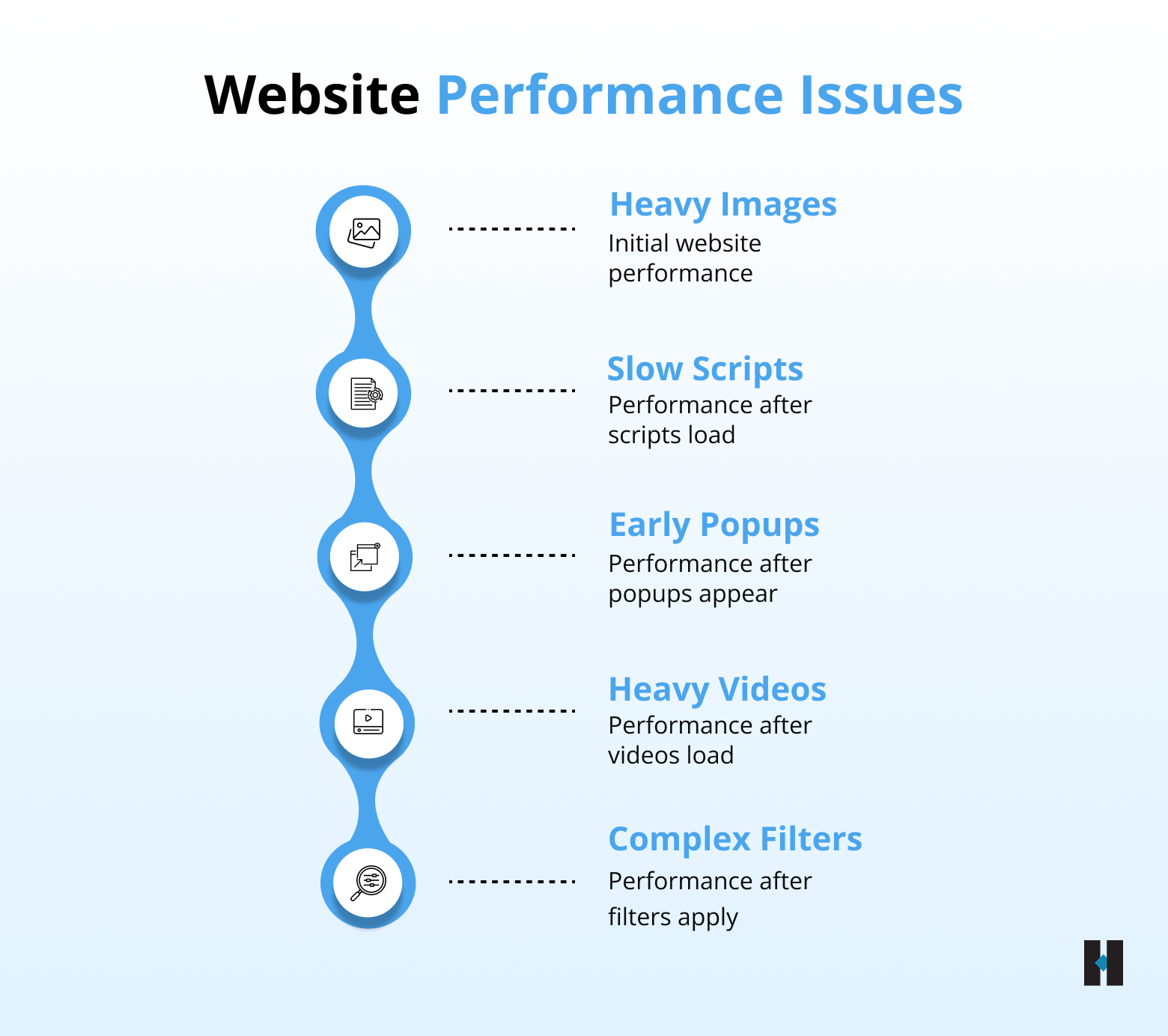
1. Heavy Product Images and Videos
Product images are one of the biggest reasons Shopify stores slow down on mobile. Ecommerce teams naturally want high-quality visuals, especially for fashion, beauty, furniture, skincare, electronics, and luxury products. But high-quality does not mean the original 4000px image should load on a mobile screen.
A mobile product page often needs optimized versions of images, not the full-size asset. If the main product image is too large, LCP suffers because the browser must download and render that image before the user sees the main content. The problem becomes worse when product pages include multiple lifestyle images, GIFs, before-and-after visuals, embedded videos, or large banners above the fold.
A professional example would be a skincare brand using a high-resolution model image as the first product visual. The image may look premium, but if it is not compressed and served in the right size, the first meaningful view of the page is delayed. The customer does not experience the brand as premium; they experience it as slow.
The fix is not to remove visual content. The fix is to control how it loads. Use properly compressed images, serve images in modern formats where possible, avoid uploading unnecessarily large files, and make sure below-the-fold images are lazy-loaded. Browser-level lazy loading allows offscreen images to load only when users scroll near them, reducing unnecessary upfront loading.
2. Too Many Shopify Apps Loading on Every Page
Apps are one of Shopify’s biggest strengths, but they are also one of the most common performance risks. A store may use separate apps for reviews, bundles, loyalty points, subscriptions, popups, returns, size charts, upsells, back-in-stock alerts, social proof, chat, analytics, and email capture. Some of these apps load scripts across the entire site, even when the feature is only needed on one page type.
For example, a review app may be needed on product pages, but its script may still load on the homepage and collection pages. A bundle app may be useful for selected products, but it may add JavaScript globally. A pop-up tool may add a delay before the shopper can interact with the page. Individually, each app may seem acceptable. Together, they create a slow mobile experience.
The practical fix is to audit apps based on actual business value. Do not judge apps only by whether they are installed. Judge them by whether they are used, whether they contribute to revenue, and whether they load unnecessarily. If two apps perform similar functions, consolidate. If an app is only required on one template, ask the developer to load it conditionally. If an app was installed for testing and never became part of the store strategy, remove it properly and check whether leftover code remains in the theme.
3. Theme Bloat and Unused Sections
Many Shopify stores use flexible themes with rich design sections. This is useful for non-technical teams because they can build banners, carousels, icons, tabs, trust sections, comparison blocks, and promotional areas without custom development. But over time, the theme can become overloaded.
The homepage may have multiple hero banners, sliders, video sections, product carousels, collection blocks, testimonials, Instagram feeds, and newsletter popups. Product pages may have too many accordions, recommendation sliders, badges, payment icons, sticky widgets, and embedded blocks.
On the desktop, this may still look manageable. On mobile, every section competes for bandwidth, processing power, and attention.
The fix is to simplify the mobile experience, not necessarily the entire website. Mobile users need the fastest route to confidence and action. A product page should quickly answer: What is the product? What does it do? Why should I trust it? What options are available? How quickly can I buy it?
Sections that support those questions should stay. Sections that are decorative, repetitive, or hidden behind poor mobile UX should be reduced, delayed, or redesigned.
4. Render-Blocking Scripts and Styles
Another reason Shopify stores feel slow on mobile is that the browser must load too many files before it can show the page properly. CSS, JavaScript, fonts, app scripts, and tracking tags can block or delay rendering.
This usually affects the first view of the page. A shopper clicks an ad, lands on the product page, and sees a blank screen, skeleton layout, or delayed hero image. The page may technically be loading, but the user feels nothing is happening.
This is a serious issue for paid traffic. If you are paying for Google Ads, Meta Ads, or TikTok Ads, every slow landing page increases wasted spend. A user who leaves before the product page becomes usable still costs money.
Fixing this requires developer involvement. The goal is to load critical CSS first, delay non-critical scripts, reduce unused JavaScript, avoid unnecessary libraries, and make sure third-party scripts are not blocking the main content. For Shopify stores, this often means cleaning theme code, reviewing app embeds, and checking whether scripts are being injected globally.
5. Tracking Pixels and Marketing Tags
Marketing teams often add multiple tracking tools to understand user behavior. A typical Shopify store may have GA4, Google Ads, Meta Pixel, TikTok Pixel, Pinterest Tag, Microsoft Ads, Hotjar, Clarity, Klaviyo, affiliate scripts, and other remarketing tags.
Tracking is important, but uncontrolled tracking can slow down mobile performance. The issue becomes worse when tags fire too early, duplicate scripts exist, or both hardcoded pixels and GTM-based tags are active at the same time.
A professional setup should balance measurement and performance. Keep essential tracking, remove duplicate tags, use Google Tag Manager carefully, and avoid firing every script on every page when it is not needed. For example, a checkout-related event does not need to load heavy behavior-tracking scripts on a blog page. A product-view event should be clean and accurate, not duplicated across multiple platforms.
6. Popups, Chat Widgets, and Social Proof Tools
Conversion tools can sometimes hurt conversion when they interrupt the mobile experience too early. Email popups, discount wheels, sticky bars, chat widgets, social proof notifications, and app-based urgency banners all add visual and technical load.
The problem is not only speed. It is timing.
A pop-up that appears before the product content loads can increase frustration. A chat widget that loads immediately can compete with product images. A social proof notification that shifts the layout can hurt CLS. A sticky bar that overlaps the add-to-cart area can make the page feel poorly designed.
The fix is to use these tools with restraint. Delay popups until the user has engaged. Load chat after the main content. Avoid layout-shifting banners. Keep sticky elements lightweight and make sure they do not block key actions on mobile.
7. Collection Pages With Too Many Products and Filters
Collection pages are often overlooked in speed audits. Many Shopify merchants focus only on product pages, but collection pages can be heavy because they load many product cards, images, filters, sorting options, swatches, badges, review stars, and quick-view buttons.
This is especially common in fashion, furniture, beauty, and multi-SKU stores. A collection page with 48 products, multiple hover images, color swatches, review snippets, sale badges, and filter logic can become slow on mobile.
The fix is to reduce the initial load. Show fewer products per page or use well-optimized pagination. Avoid loading second product images immediately on mobile. Keep filters usable but not overly complex. Lazy-load product images below the first screen. If a quick view is not driving measurable conversions, remove it or simplify it.
How to Diagnose the Real Reason Your Shopify Store Is Slow?
The biggest mistake is guessing. Many teams immediately compress images or uninstall apps without knowing what is actually causing the issue. That can help, but it can also waste time. A better approach is to diagnose the problem step by step before making changes.
1. Start With Shopify’s Web Performance Reports
Begin with Shopify’s own web performance reports. These reports show how your storefront performs across Core Web Vitals, including desktop and mobile experiences. They can also help you understand how changes such as app installs, theme updates, and new code affect the storefront experience.
2. Test Key URLs in PageSpeed Insights
Next, use PageSpeed Insights for specific URLs. Test your homepage, a top product page, a best-selling collection page, and a blog page if content drives traffic. Do not rely only on the homepage, because in ecommerce, product and collection pages often carry the highest revenue impact.
3. Review Core Web Vitals in Google Search Console
Google Search Console’s Core Web Vitals report is also useful because it groups URLs by LCP, INP, and CLS performance using actual user data where enough data is available. This helps you understand whether the issue is limited to a few pages or affects a larger group of similar URLs.
4. Test the Store Manually on a Real Phone
Finally, test the store on a real mobile device. Open the store on mobile data, not just office Wi-Fi. Tap product images, open variant selectors, add a product to cart, open the cart drawer, scroll through reviews, and follow the same journey a paid visitor would take.
If the page technically scores well but still feels delayed during these actions, the issue may be interactivity rather than initial loading.
Practical Fixes That Usually Make the Biggest Difference
The biggest mobile speed improvements usually come from fixing the parts of the Shopify store that load first and affect the buying journey directly. Start with product pages, collection pages, and paid-ad landing pages because these pages have the highest impact on sales.
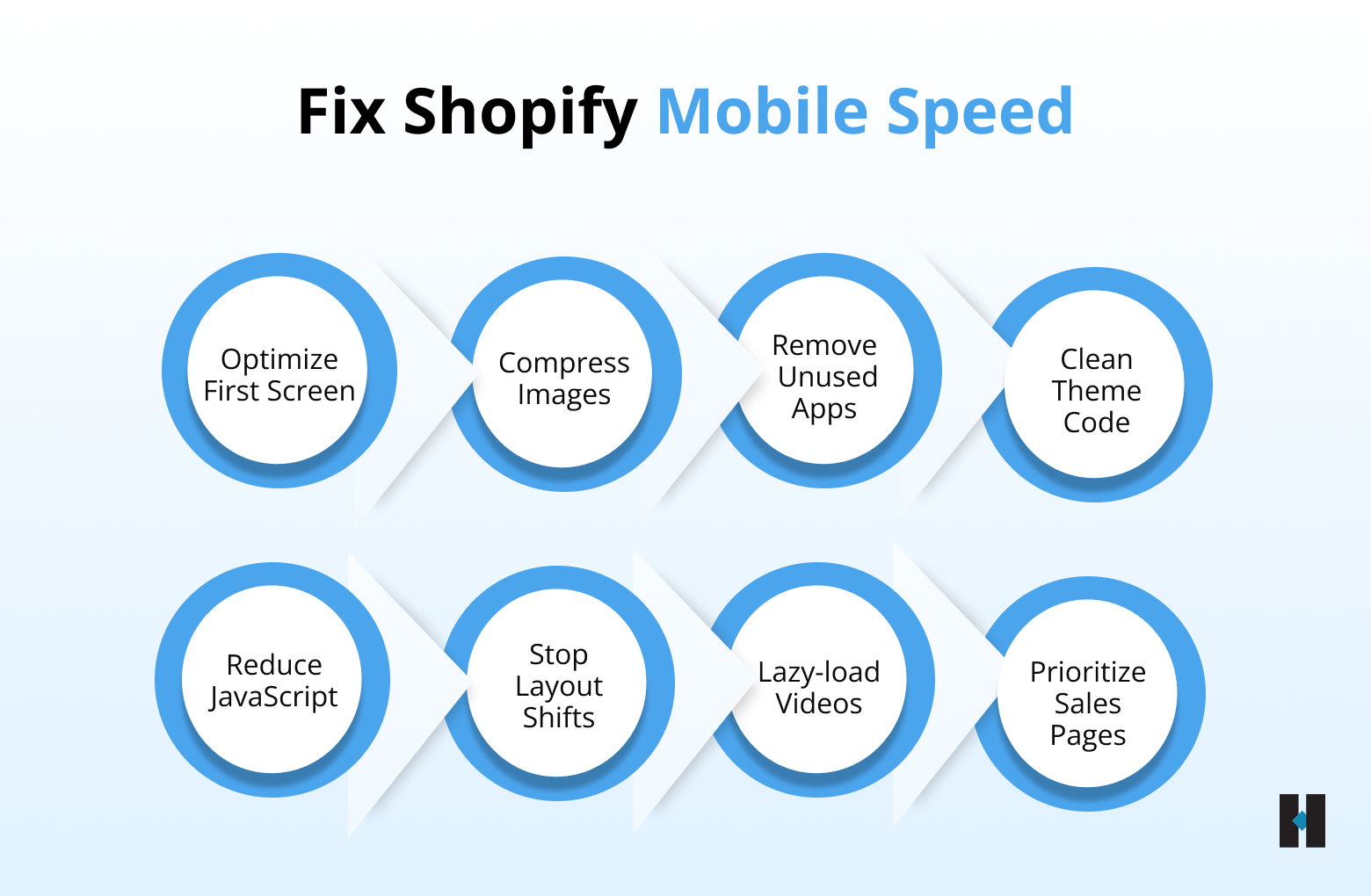
1. Optimize the above-the-fold area first
The first mobile screen should load quickly and clearly. Keep the main product image, title, price, reviews, offer, and add-to-cart button visible without delay. Avoid heavy sliders, autoplay videos, or too many app blocks in the first view.
2. Compress and resize images
Large product images are one of the most common reasons Shopify stores slow down on mobile. Compress images before uploading, use the right dimensions for mobile, and avoid oversized banners. Lazy-load images below the fold, but do not lazy-load the main product image if it is the key visual loading first.
3. Audit unnecessary apps
Too many Shopify apps can add extra scripts and slow down the store. Review every app and ask whether it is actively used, whether it supports revenue or trust, and whether it needs to load on every page. Remove unused apps and conditionally load important apps only where needed.
4. Clean theme code
Shopify themes often collect old scripts, duplicate code, unused sections, and leftover app snippets over time. Cleaning unused CSS, JavaScript, outdated campaign code, and old app files can improve speed without changing the visible design too much.
5. Reduce heavy JavaScript
If users tap a variant, open the cart drawer, or click add to cart, and the page responds slowly, JavaScript may be blocking interaction. Reducing unnecessary scripts helps improve mobile responsiveness and creates a smoother shopping experience.
6. Improve layout stability
Reserve proper space for images, banners, reviews, payment icons, and app widgets so the page does not jump while loading. A stable layout feels more polished and prevents users from accidentally tapping the wrong element.
7. Delay non-essential embeds
Videos, social feeds, maps, and iframes should not load immediately if they appear lower on the page. Lazy-load these elements so the main product content loads first.
Which Shopify Pages Should You Optimize for Speed First?
Not every performance issue deserves the same priority. A practical Shopify speed plan should begin with pages that affect revenue.
Start with the highest-traffic product pages, especially those used in paid campaigns. Then move to the best-selling collection pages. After that, review the homepage, because it often carries brand trust and returning visitor traffic. Blog pages should be optimized too, but they should usually come after money pages unless organic content is your main acquisition channel.
Within each page, prioritize the first mobile screen. The first product image, title, price, review summary, offer, and CTA should load quickly and remain stable. Then optimize interaction points such as variant selection, add-to-cart, cart drawer, and checkout entry.
This approach is more commercially useful than chasing a perfect score. A Shopify store does not need to be stripped down to the point of losing its persuasive power. It needs to be fast enough to let customers evaluate the product, trust the brand, and move toward purchase without friction.
Conclusion
A Shopify store usually slows down on mobile due to accumulated weight: large images, too many apps, heavy theme sections, render-blocking scripts, tracking pixels, popups, widgets, and unoptimized collection or product templates. The problem is rarely Shopify alone. More often, it is the result of adding growth, experimentation, and marketing tools without a performance review.
The solution is not to remove everything. The solution is to make the store disciplined. Keep the elements that help customers make a buying decision. Remove or delay the elements that distract, duplicate, or slow the journey. Use Shopify’s performance reports, PageSpeed Insights, Search Console, and real-device testing to identify the actual bottlenecks before making changes.
Mobile speed should be treated as a conversion asset. A faster Shopify store gives shoppers a smoother experience, gives campaigns a stronger landing page, and gives SEO a better technical foundation. In a competitive ecommerce market, that difference can directly affect how many visitors stay, how many products they view, and how many orders the store earns.
At tecHindustan, we help e-commerce and Shopify brands improve website performance, user experience, and conversion-focused growth. If your Shopify store is slow on mobile or losing potential customers because of poor performance, contact tecHindustan to discuss how we can help you build a faster, cleaner, and more conversion-ready store.
FAQs
